How to Delete Gmail Attachments Without Deleting the Emails
Efficiently recover Google storage by deleting or downsizing Gmail attachments.

If you delete whole emails, you recover Google storage, but you also lose the most valuable information within the emails, the text, which takes up very little storage. It would be great if you could remove Gmail attachments without deleting the emails themselves. Even better if you could also back up the attachments beforehand. Unfortunately, you cannot do this in Gmail.
We created a web app called Unattach that can do this and much more. The app has been reviewed and approved by Google. All personal data flows only between Gmail servers and your browser, so your data stays private and secure. The app currently has over 10k users and has received many positive reviews.
Removing Attachments
To demonstrate how Unattach works, we create a test email with the subject "mona lisa painting" and attach a picture of Mona Lisa. In Gmail's web interface, the email looks like this:
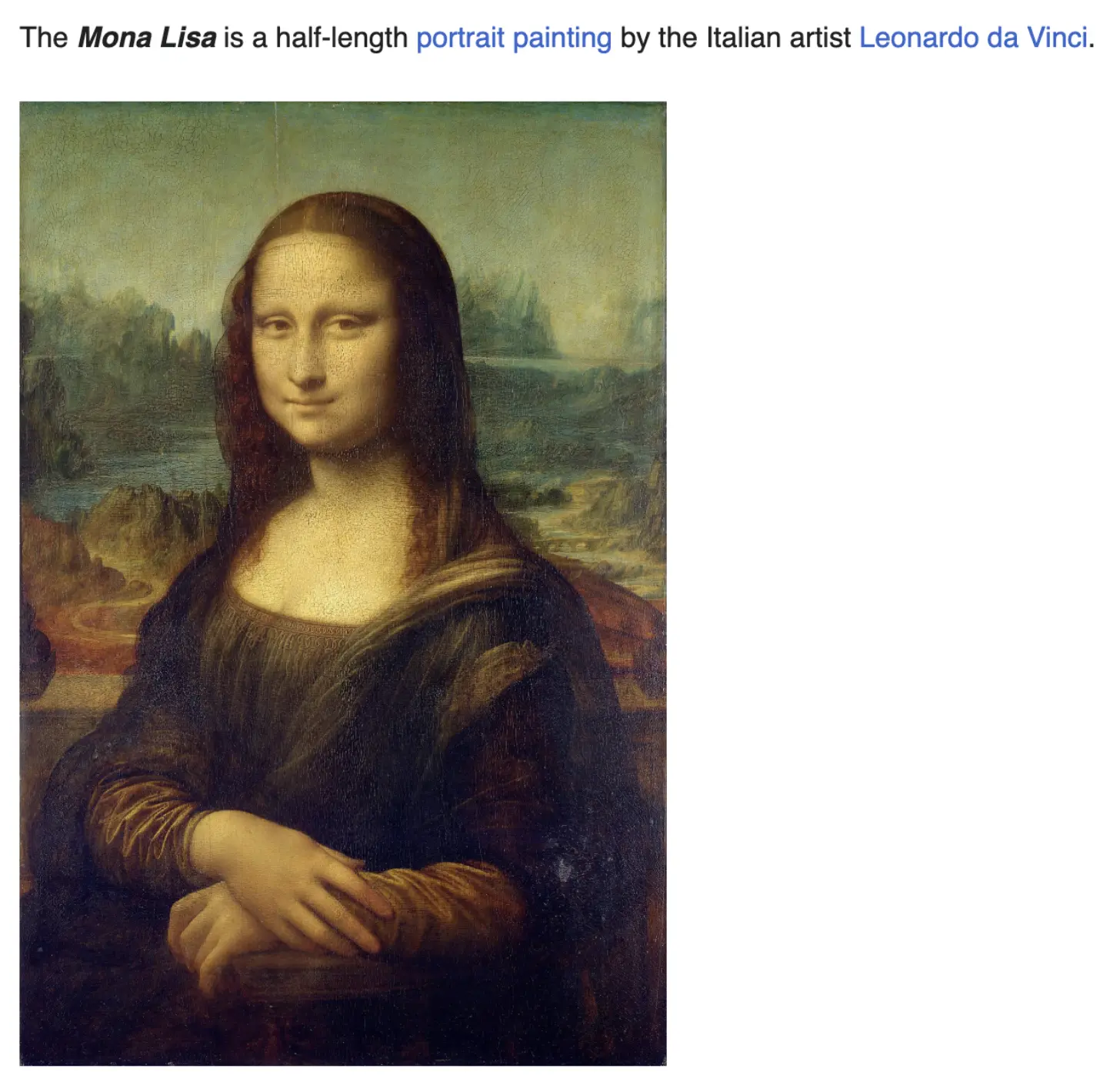
The picture is an inline attachment (sometimes also referred to as an embedded attachment), which means that the image is displayed within the body of the email. The image we used is a JPEG file named mona-lisa.jpg with a size of 1.3 MB.
We sign in to Unattach, and search for has:attachment mona lisa in the app's Advanced Search (which returns exactly the same results as Gmail's web interface). We then select the email by ticking the box to the left of it, and enable the "Remove attachments" option.
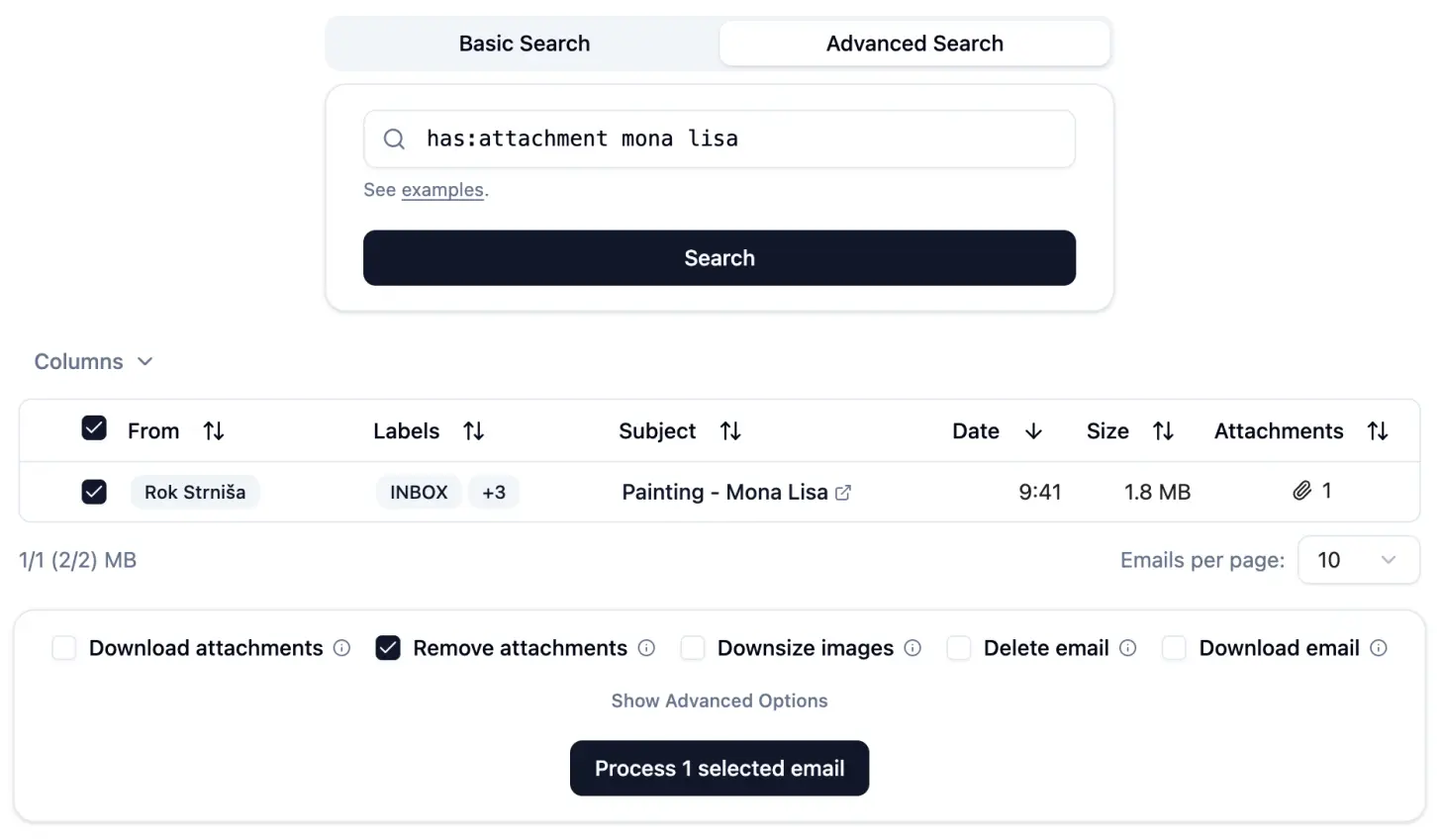
When we press "Process 1 selected email", the app downloads the selected email from Gmail to the browser, removes the attachment from the in-memory copy of this email, inserts the modified copy into Gmail, and then moves the original email to Gmail's Bin.
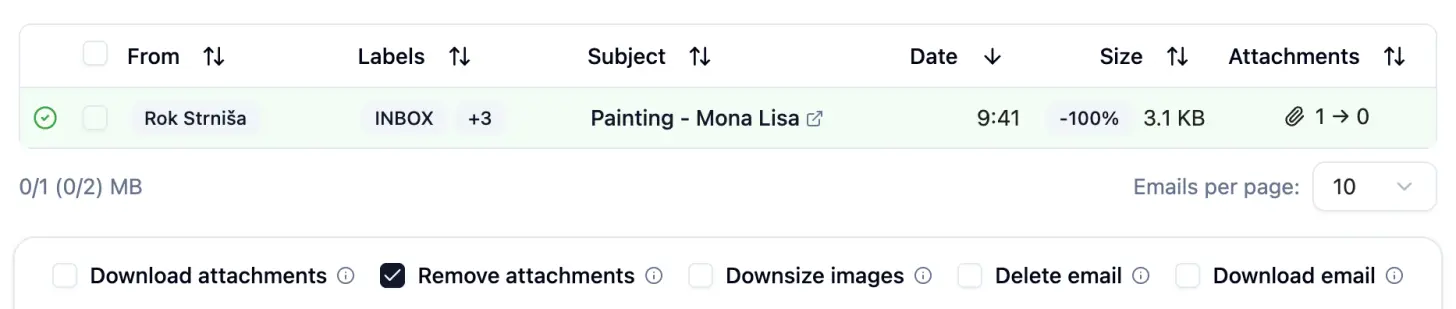
If we now open the email in Gmail's web interface (by clicking on its Subject in the app), we can see that the attachment has been removed, and that the app added information about the change (this can be disabled in the app's advanced options):
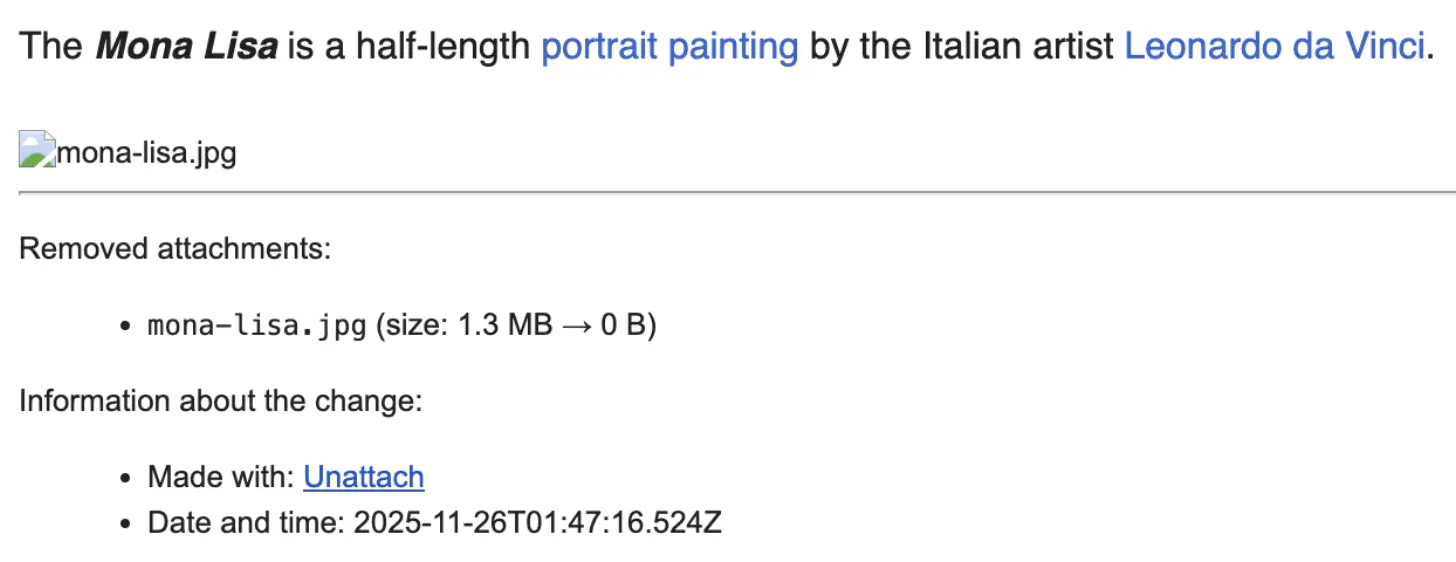
By default, Unattach moves the original email to Gmail's Bin, which allows you to easily undo any action taken by the app. Gmail automatically permanently deletes emails that have been in the Bin for 30 days. Once an email has been permanently deleted, Google storage will be freed.
If you don't want to wait 30 days or don't want to manually empty the Bin, you can tell Unattach to permanently delete the original email instead of moving it to the Bin. This can be enabled in the app's advanced options.
Downsizing Images and PDFs
The Unattach app can also downsize images and PDFs. PDFs are downsized by downsizing the images within them.
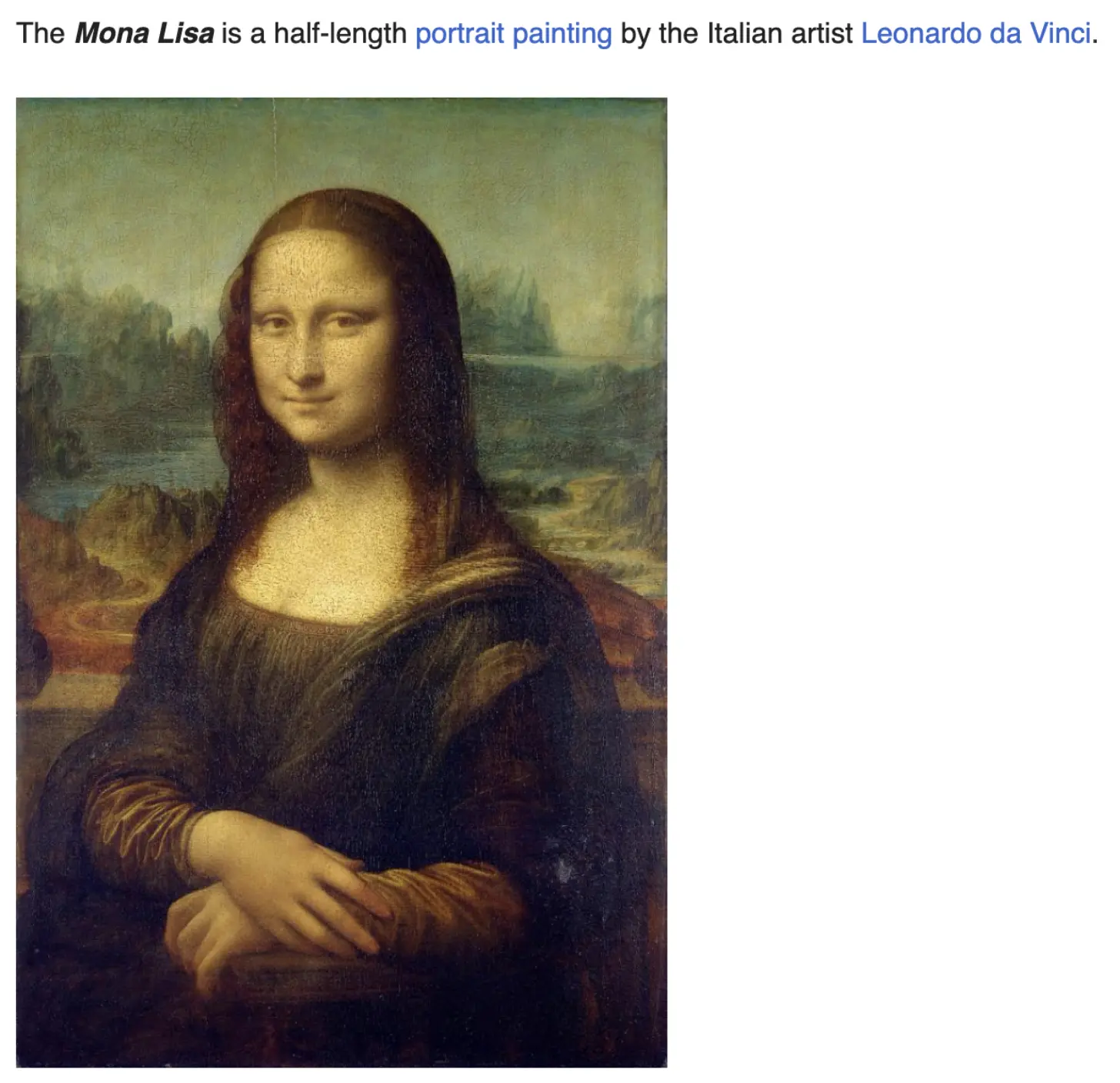
If we ask Unattach to downsize rather than delete the attachment for the Mona Lisa email, Unattach will reduce the resolution and quality of the attached image (configurable in advanced options), which in turn reduces its size by 90%.
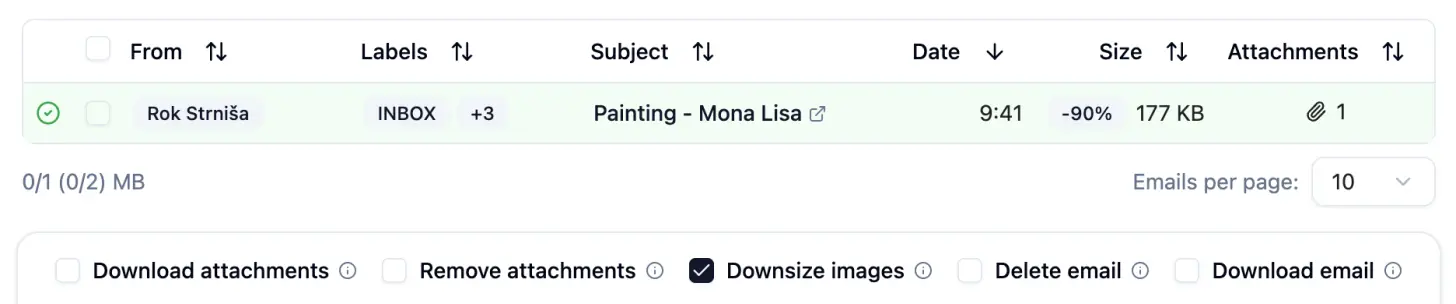
If we now view the email in Gmail's web viewer, it looks the same as the original, except that the image resolution and quality are lower:
Conclusion
In this blog post, we have shown how Unattach can remove and downsize attachments while preserving the emails' text.